Scenes and Settings: How to Prompt and Set Up an AI Video
This AI video prompting guide starts with one fact. A prompt is the sentence you type into "Describe your scene", and one clear sentence is enough. Each guide below adds one skill.
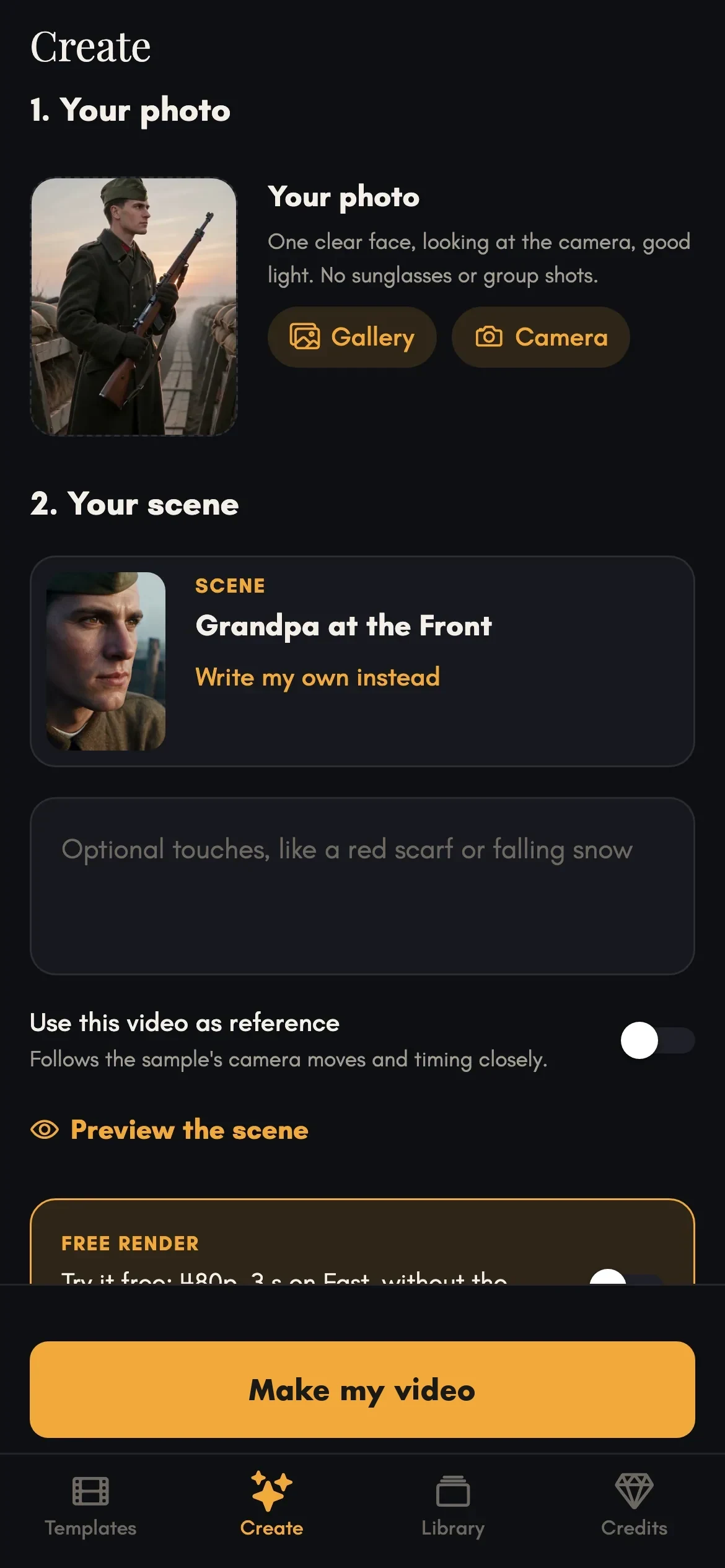
Write the scene
Name a person, a place and one action: “my aunt shaking out an umbrella on a rain-streaked station platform”. That is a whole prompt in vidmi, the iPhone app this guide is written for. How to write a scene breaks the sentence into parts, and the scene idea lists give you whole sentences to copy and change.
Two limits to know before you write. A video stars the one face in your photo, so build the scene around one person. And a prompt cannot put words on the screen or choose what anyone says.
Not sure how a sentence will play? “Preview the scene” shows, in words, what the film will show before you spend anything.
Add camera, light and era
A few plain words steer the look. Camera movement words ask for how the shot travels, lighting words name a light source and a time of day, and period scenes name the clothes, props and light of a decade. Treat them as requests: add one at a time and see what you get.
Start from a ready-made scene
If you would rather not write from scratch, pick a scene and add one detail in the “Customise” box. How to customise a template shows what to put there.
Choose the settings
The options under your scene shape the film too. Start with how long the video should be, then which resolution to pick. The Create tab also has the sound choice, explained in voices and sounds, and the three models, explained in Fast, Quality or Max.
When a video misses
Change one thing and make it again. What to change next helps you name what felt wrong: the face, the scene, the motion or the mood.
With a ready-made scene there is one more control. The reference switch makes your film follow the sample’s camera moves and timing closely. It is not available on a free video.
10 guides.
All guides- Choose the resolutionThe best resolution for Instagram Reels, a group chat, a TV or a keepsake: when 480p, 720p or 1080p is the right pick for a vidmi video.
- Choose the video lengthHow long should a short video be? Match the length to the moment: 3 seconds for a reaction, 5 for a scene, 7 for a story beat, 10 for a tribute.
- Customize a sceneHow to customize an AI video template in vidmi: add one small detail in the Customise box, such as a red scarf or falling snow, plus five recipes to try.
- Describe camera movesAI video camera movement prompts in plain words: slow push-in, orbit, tracking shot, handheld. What each move does and how to ask for it in a scene.
- Fix a video that missedHow to fix a bad AI video in vidmi: name what feels off, whether it is the face, the scene, the motion or the mood, change one thing and make it again.
- Get more from your creditsHow to use fewer credits on each AI video in vidmi: watch the sample, preview the scene in words, draft short on Fast, then finish once at full size.
- Lighting words for promptsCinematic lighting prompts for AI video: golden hour, neon, candlelight, overcast. The lighting words that change the mood of a scene, with examples.
- Pick the right sceneHow to choose an AI video template: three quick questions about the person, the age of the photo and the occasion point you to the right vidmi scene.
- Write a period sceneWrite a historical AI video prompt that fits its decade: the clothes, props, settings and light of the 1920s to the 1990s, in words to copy.
- Write an AI video promptHow to write AI video prompts that say what you mean: one sentence built from who, where, when and mood, with 15 before-and-after examples.
One photo. Any scene. Your film.
Coming soon to iPhone: add one photo and pick a scene. Free to try, no account needed.
For iPhone.