Credit habits
Get More From Your Credits: Seven Habits
To use fewer credits on each AI video, move the guesswork to before you tap. Seven habits, all things you can see and choose in the app before you tap.
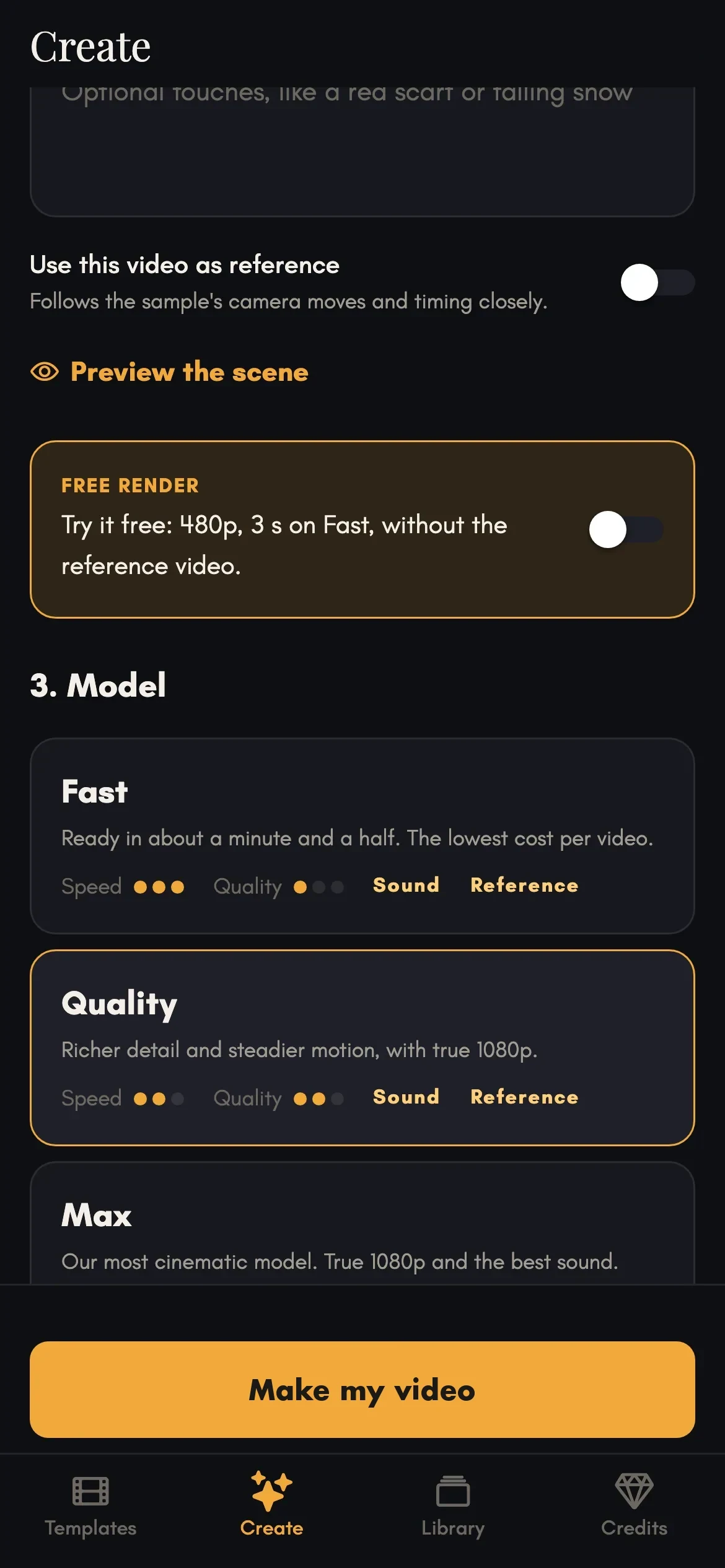
These habits are about what you can see and choose in the app before a video starts: the sample, the preview, the settings and the photo. They will not make a video free, but they cut down on videos you make and then wish you had not. How credits work explains the basics, and how to buy credits covers the rest.
Know the cost before you tap
Every model card in “3. Model” shows its cost for your current settings, and the main button says it plainly: “Make my video · N credits”. Change your settings and the numbers update as you go.
So the habit is simple. Look at the button before you press it. If the number feels high for what the film is for, one of the habits below will bring it down.
1. Watch the sample first
Every template plays its sample film on the scene card and again on the template screen. It shows the setting, the light and the pace the scene starts from. Your own film will not be a copy of it.
Watch it with sound on. If Viking Longship feels too cold for the mood you want, you learned that before spending anything. Pick Paris Café, 1920s instead and spend your credits on the scene that fits.
2. Preview the scene in words
Writing your own scene? Tap “Preview the scene” before you make anything. It shows, in words, what the film will show. If it reads wrong, change your sentence and preview again. Fixing the words before you make the film is cheaper than making the wrong film.
3. Try it free on your photo
New to vidmi? The app says it plainly: “Try it free: 480p, 3 s on Fast.” Use the free try to answer the question every later film depends on: does this photo work on screen?
Spend the free try on your photo, not on your favorite scene. Once you have seen how the face comes out, every paid film starts from a photo you have already tested.
4. Fix the photo before you retry
When a film disappoints, the instinct is to run it again. Look at the photo first. The app’s own tip is the checklist: “One clear face, looking at the camera, good light. No sunglasses or group shots.”
A sharper, brighter, front-facing photo can do more for your next film than another try with the same one. See how to pick the best photo.
5. Keep it short
Length is one of your settings, so watch the button after you change it. Every template is 5 seconds, enough for a sax solo starting, a look up at the Earth or a lantern coming on. Save 7 and 10 seconds for scenes that need room to unfold.
Drafting? Use 3 seconds. That is enough to check the face and the setting.
6. Match resolution to the screen
One way to choose is by where the film will be watched, not by what sounds best.
| Where it plays | Resolution |
|---|---|
| A group chat or a quick reaction | 480p |
| Stories, Reels and TikTok | 720p |
| A TV, a projector or a keepsake | 1080p |
720p is the default. Save 1080p for the films that will be seen big.
7. Turn on reference only when it matters
“Use this video as reference” makes your film follow the sample’s camera moves and timing closely. It costs more, so use it on purpose. If you chose a template because of how its sample moves, turn it on (use this video as reference explains the switch) and your film follows that shot closely. If you only want the setting, leave it off and describe your own touches in “Customise”.
Draft, then finish
Put the habits together and you get one rhythm: test cheap, finish once. Draft on Fast at 3 seconds and 480p until the face and the scene are right, then switch up for the final cut. The Fast, Quality or Max guide compares the three for the final cut.
Two things you never pay for
- A failed video. If a film doesn’t come out, the app says “Your N credits are back in your balance.” No request needed.
- An idea that can’t be made. The app tells you before anything is charged: “You haven’t been charged.”
If a film came out but not the way you pictured it, read how to fix a video.
Questions
Do I lose credits if a video fails?
No. A failed video gives its credits back to your balance automatically, and the app tells you so.
Does "Preview the scene" cost anything?
The app offers it as a way to see, in words, what the film will show before you spend anything.
Does turning on reference cost more?
Yes. "Use this video as reference" costs more credits than leaving it off. Turn it on when the sample's camera moves are the reason you picked the scene.
Do I need a subscription?
Credits are one-time purchases made in the app through Apple. There is no subscription. They stay on the iPhone that bought them.