Choosing a photo
How to Choose the Best Photo for an AI Video
The best photo for an AI video has one clear face, even light and sharp eyes. Here is how to find it among the photos already on your iPhone.
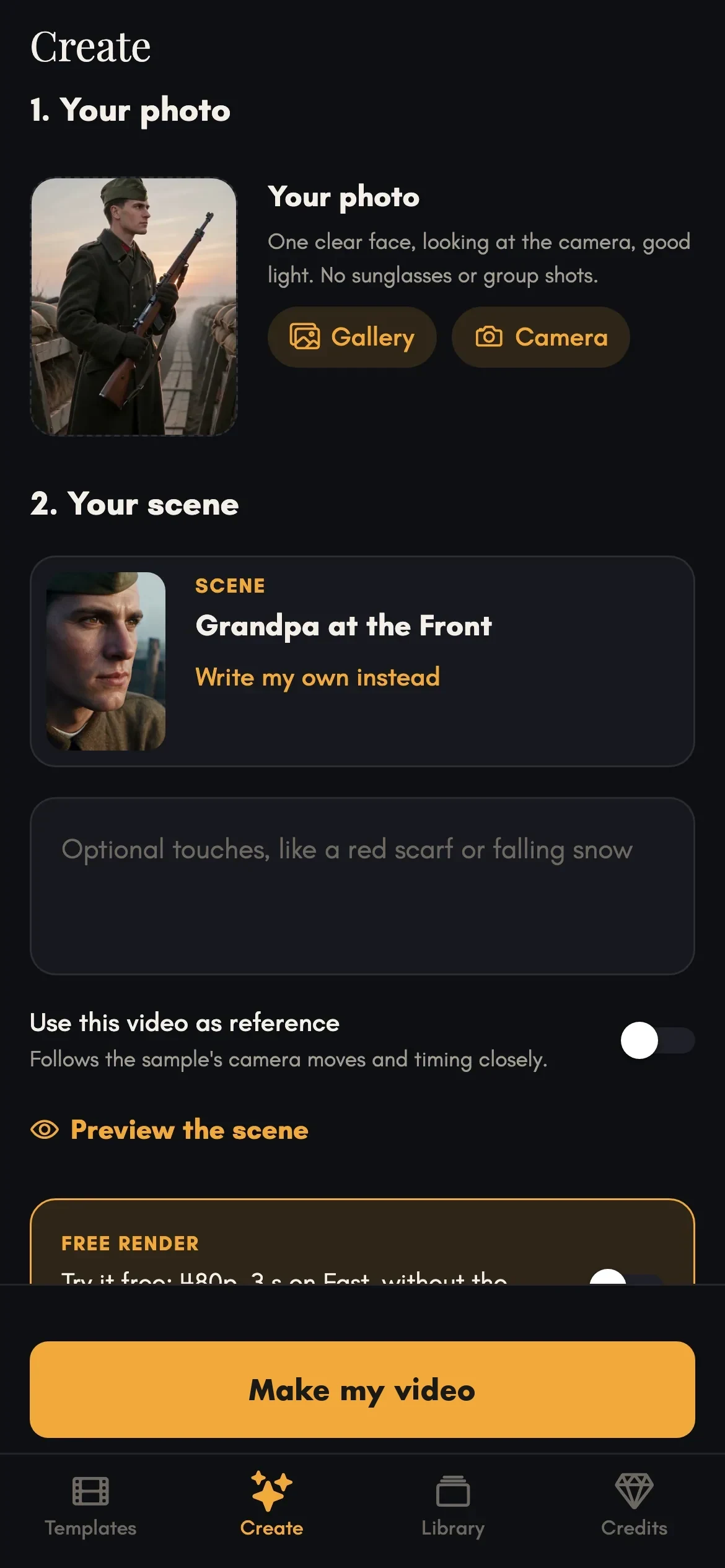
One photo. Everything rides on it.
Every vidmi film starts from a single face: one photo, one person per video. That face goes into vidmi’s scenes; it does not go into a video you upload. A clear photo gives your film a clear star.
The app puts it in one line under “1. Your photo”: “One clear face, looking at the camera, good light. No sunglasses or group shots.” This guide unpacks that line, so you can pick well from the photos you already have.
The five-point check
Run any candidate photo through these five questions. If it passes all five, use it.
1. Is there one face, and only one?
vidmi films one person. Pick a photo where one face is clearly the subject. If your favorite shot is from a birthday table or a wedding row, crop it down to one face when you pick it. The crop is portrait-shaped, so frame the head and shoulders. Cropping a person out of a group photo shows how.
2. Can you see the whole face?
Look for a photo taken from the front or a slight three-quarter turn, with both eyes visible. Skip full profiles, faces tilted far down at a phone, and shots where a hand, a cup or hair covers part of the face. Sunglasses hide the eyes, and the eyes carry most of the expression.
3. Is the light even?
Soft, even light is the first thing to look for. A face lit by a window or an overcast sky beats a face lit by a hard noon sun. Pass on photos with deep shadows across one side, bright blown-out foreheads, or colored party lights washing over the skin.
4. Is the face big enough and sharp?
Zoom in on the face. If it turns into soft blocks of color, pick another photo. A face that fills a good part of the frame, with crisp eyes and eyebrows, is what you want. Photos forwarded many times through messaging apps often lose detail, so look for the original.
5. Is it the real face?
Heavy beauty filters, face-smoothing, cartoon effects and strong color filters change the face in the photo itself, and your film stars the face as the photo shows it. Choose an unedited photo whenever you have one.
Good picks, quick passes
Usually great:
- A head-and-shoulders portrait by a window
- A school, work or ID-style photo with plain light
- A candid shot outdoors on a cloudy day, facing the camera
- An old print, scanned flat and sharp, with the face clearly visible
Usually a pass:
- A group selfie where your face sits at the edge
- A concert or club photo with colored lights and blur
- A beach shot in sunglasses and a hat brim shadow
- A side profile, or a face turned away from the lens
- A photo run through a beauty or cartoon filter
Pick the expression you want to see
Your film stars the face as it looks in the photo, so choose the expression with the scene in mind. A neutral face or a soft smile is an easy place to start, whether the scene is a trench at dawn or a terrace in 1920s Paris. A huge laugh or a squint is what you will be starting from, so use one on purpose.
Match the photo to the plan: a calm portrait for Grandpa at the Front, a relaxed face for Smoky Jazz Bar.
Try it
Open the Create tab, tap “Gallery”, and look through your photos for three candidates. Run each through the five-point check, crop the winner to one face, and pair it with Walking on the Moon. You can try it free, so this is a good first test.
No photo passes the check? Take a new one. Our guide to taking a selfie that films beautifully shows how, and taking a headshot with an iPhone covers a more formal portrait.
When something looks off
If vidmi can’t find a face, the photo is usually too dark, too small, or the face is turned away. See what to do when a face isn’t found. For eyewear, headwear and facial hair, read glasses, hats and beards. If the result does not look like the person, read why the person doesn’t look quite right. And for the bigger picture of what one photo can become, see photo to video.
A note on whose face you use: use photos you have the right to use.
Questions
Does the photo need to be recent?
No. A photo from ten years ago can be used if the face is clear and well lit. Your film stars the face as it looks in that photo, so pick the age you want to see.
Can I use a screenshot?
You can pick it from your Gallery like any photo. Choose one where the face fills a good part of the image and is sharp, and crop away the rest when you pick it.
What if my favorite photo has other people in it?
Crop it down to one face when you pick it. If the face ends up small and soft, choose a different photo.
Is there a file size limit?
Yes. Photos can be up to 10 MB.