Video Gifts: A Short Film Starring the Person You Are Shopping For
One photo of their face goes in, and a short cinematic video starring them comes out. Here is what that gift looks like for a parent, a partner, a friend or a sibling.
What a video gift from one photo is
A video gift from vidmi is a short film with the person you are shopping for in the lead role. You add one photo of their face, pick a scene, and the iPhone app makes a cinematic video of 3 to 10 seconds, vertical by default. There is no account to create, and it is free to try.
Here is what it is not. It is not a montage of many photos or clips, not a recorded message from a famous person, and not a card carrying your own text or music. Nothing is printed or mailed. Each video has one face in it, and every video carries a small vidmi mark in the corner.
What you get is a personalized video: your dad in a scene he has never been in, five seconds long, sent to his phone. Their face goes into one of vidmi’s ready-made scenes, which is face swap video in the plain sense, or into a scene you describe yourself.
How to make one on your iPhone
- Open the Templates tab, “Pick a scene”, and tap a scene. If you like, add a touch in the “Customise” box, such as a red scarf or falling snow, then tap “Create with this scene”. Or go to the Create tab and describe your own scene in a sentence.
- Under “1. Your photo”, tap “Add a face photo” and choose “Gallery” or “Camera”. The app’s own advice is the right one: “One clear face, looking at the camera, good light. No sunglasses or group shots.”
- Tap the main button at the bottom of the Create tab. It shows the cost in credits, or “Make my free video”, before you tap.
- Leave the screen if you like. If you allow notifications, “Your video is ready” tells you when to come back.
Use a photo you have the right to use.
Video gifts for mom, dad and grandparents
Parents are the easiest people to make a gift for and the hardest to buy for.
Grandpa and grandma
Start with the app’s own first line: “Upload your grandpa, see him at the front.” The Grandpa at the Front scene puts him on watch in a First World War trench at dawn. Sent with a few words of your own, it makes a grandpa birthday video. For a grandmother, describe the scene she would pick: her at a market stall in the early morning, the first light on the fruit.
Mom
For a birthday, make the moment she never gets to stop and enjoy. Send it alone, early, before anyone else has called. Mother’s Day has its own page, Mother’s Day videos.
- “my mom standing on a farmhouse porch in the first light, steam rising from a mug in her hands”
Dad
Pick a scene with room in it: water, a mountain, an open road. A birthday video for dad can go out as a text at breakfast. For Father’s Day, see Father’s Day videos.
Video gifts for a husband, wife, boyfriend or girlfriend
For a partner, pick a scene that fits something about them, not a generic romantic one. One person per video; if you want a pair, make one film each and send them one after the other.
Husband and wife
An anniversary video for a husband or wife can be a short film of them doing the thing they are best at, written like the opening shot of a movie. Send it with your own words in the message. There is a longer page on anniversary videos.
Boyfriend and girlfriend
Cute video ideas for a boyfriend or girlfriend work best when they are specific: their favorite city, their favorite hobby, their favorite decade.
- “my girlfriend riding a bicycle across a stone bridge at golden hour, scarf trailing behind her”
If you live in different places, the page on long-distance gifts has scenes for a partner, a friend and family far away.
Funny video gifts for a best friend, brother or sister
With friends and siblings, the joke is the gift. Cast them somewhere they would never be caught and send it without a caption.
Best friend
A birthday video for a best friend can put them in the lead of a scene that matches a running joke: the friend who is always late as a lighthouse keeper, the friend who never stops talking as a night-bar saxophonist. The Smoky Jazz Bar scene is ready to use. Keep it kind: make the scene one they would post themselves.
- “my best friend in a full captain’s uniform steering a swan pedal boat across a park pond at dawn, looking extremely calm”
Brother
A funny birthday video for a brother is a scene that would never happen: him as a Viking at the prow of a longship in a misty fjord, using the Viking Longship scene.
Sister
A birthday video for a sister can be as simple as a scene she loves, played as the first message of her day. There is a full page for the day itself, birthday videos.
Secret Santa, Kris Kringle or a white elephant swap
You drew a name, the swap is tomorrow or fully remote, and you have a photo of that colleague. Use one you have the right to use. Make a five-second film of them as a jazz singer or a Viking and send it in the team chat, or try:
- “my coworker conducting a tiny orchestra of snowmen in a village square, red scarf, soft evening snow”
It works as a funny Secret Santa idea, a personalised Secret Santa gift, or a Kris Kringle or white elephant extra next to the real thing. Pick a scene your colleague would be glad to see in the team chat, never one that embarrasses them in front of the boss.
For the person who has everything
Nobody already owns a film of themselves in a scene like this. That is the argument for a non-material gift, and it is also a clutter-free gift idea: nothing to dust, nothing to return. For a gift for someone who has everything, pick the scene that suits their taste, such as the Walking on the Moon scene for the one who loves space. The digital gift page covers the same idea for a gift you need to send today.
How to give it: text it, save it or play it on the TV
A finished video opens on the “Your video” screen with “Share”, “Save to Photos” and “Make another”. The person does not need the app to watch it, because you are sending an ordinary video file.
- Text it. Tap “Share” and send it by message; the guide to sharing to iMessage shows the steps.
- Save it. “Save to Photos” puts a copy in your iPhone’s Photos, which is also the safe place for a video you care about.
- Play it on the TV. Open it from Photos and play it on the TV with AirPlay at the party, with everyone in the room.
Sound is your choice. “Voices + sounds” can add generated voices, “Sounds only” keeps just the sounds of the scene, and “Silent” has no sound track. Nobody can choose the words in a video, so put what you want to say in the message you send with it.
2 ideas.
All occasions- Digital and last-minute giftsDigital gift ideas for when shipping is not an option: make a short video starring them from one photo on your iPhone and send it by text the same day.
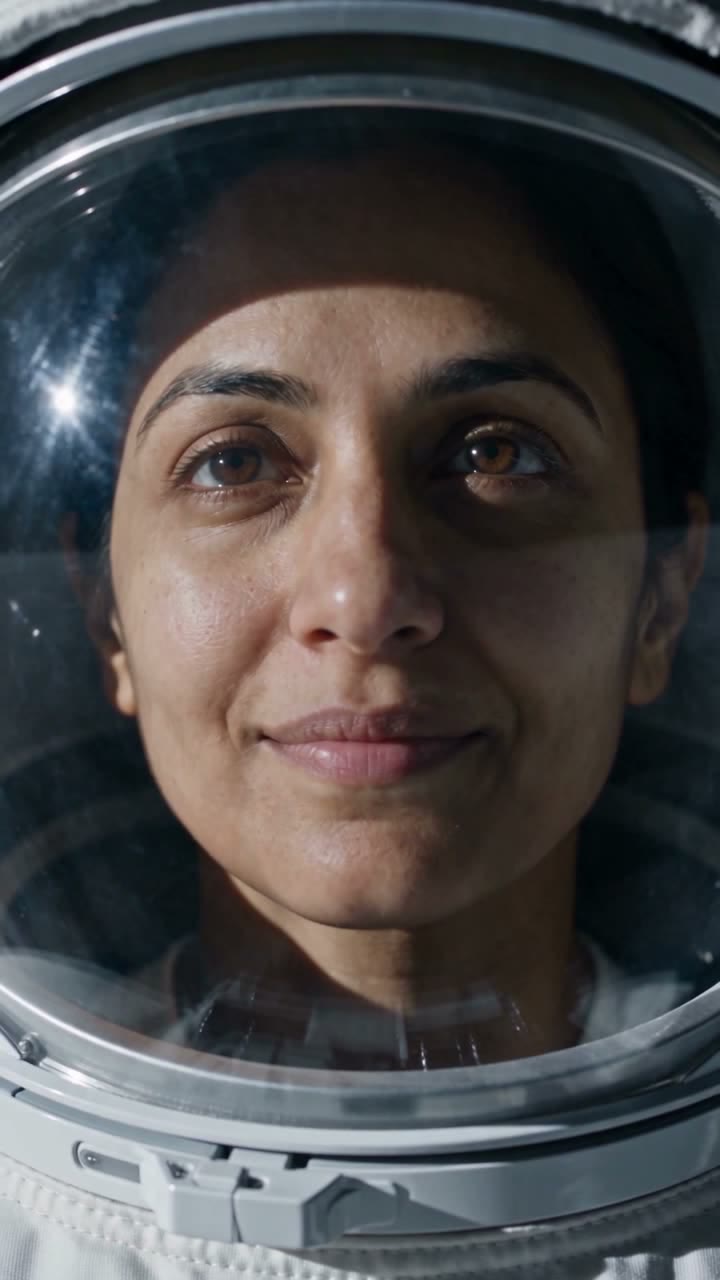
- Long-distance giftsLong distance relationship gifts that need no shipping: turn one photo into a short video starring them and send it to their phone, wherever they are.Long-distance gifts
One photo. Any scene. Your film.
Coming soon to iPhone: add one photo and pick a scene. Free to try, no account needed.
For iPhone.