Text a video
How to Send a Video Through Text From Your iPhone
To send a video through text from your iPhone, tap "Share" on your vidmi video and choose Messages, to one person or a group. It goes as a real video file, and you can save a copy to Photos.
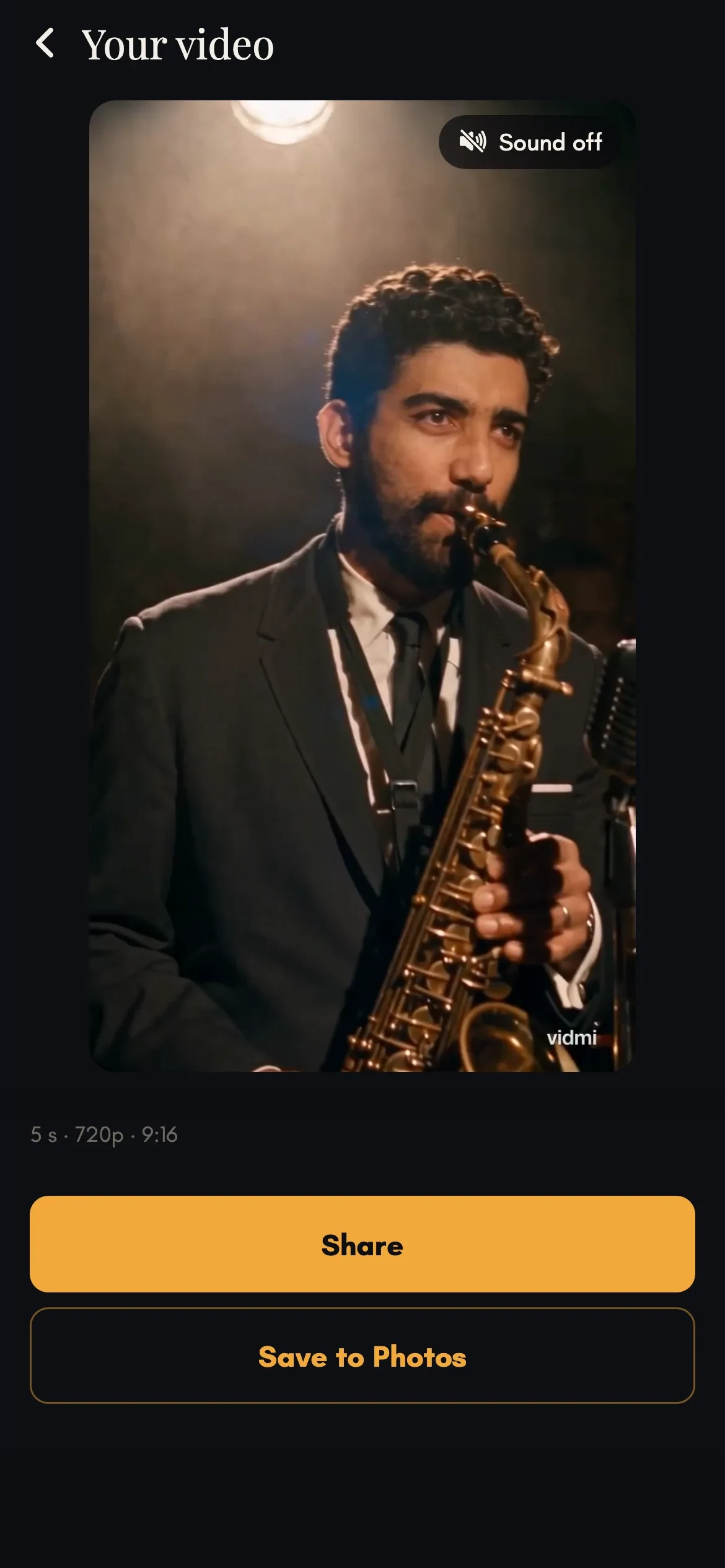
Texting is the simplest way to put a vidmi video in front of someone. You do not need an account or a link, and it works the same iPhone to iPhone or in a group thread. If you meant recording a fresh clip in the Messages camera instead, that is a different thing: this guide is for a video you have already made in vidmi.
Three taps from finished to sent
When your video is ready, it opens on the “Your video” screen and starts looping.
- Tap “Share”. Your iPhone’s share sheet opens.
- Tap Messages, or tap a recent conversation in the top row to skip a step.
- Add a line if you like, then send.
The video goes as a real file, not a link, so it plays right in the thread. It also stays in your vidmi Library, which lists your 100 most recent videos, so you can send it again later from there.
If you made it a while ago, open the “Library” tab, tap the video, and you are back on the same screen with the same “Share” button.
If it looks blurry when you text it
A video that arrives soft may have been compressed on the way, especially when it goes to a phone that is not an iPhone. That is up to Messages and the carrier, and nothing here promises how it looks on another person’s phone.
What you control is the resolution, which is set before you make the video. “Resolution” under “4. Format” offers 480p, 720p and 1080p, and a higher setting gives Messages more to work with. For more routes, read Send a video without losing quality, and Choosing a resolution for the trade-off.
Group threads
Send it to a group the same way: tap “Share”, pick the group, send.
A few things help it land:
- Lead with the video, not the explanation. Let it play first. Add your line after, or not at all.
- Keep it short. Three to five seconds is quick to watch and quick to send.
- Have the photo ready. If people ask what they are looking at, the original photo is the next thing to send.
Sending to Android friends
Messages can send to phones that are not iPhones. The video arrives as a regular video, and depending on the carrier and the phone, it may be compressed more than it would be between two iPhones. You will usually see the thread in green.
If quality matters for that person, two things help. Keep the video short, since a shorter clip is a smaller file. Or send it through an app you both use; see Send a video on WhatsApp.
Time it for the reaction
A text goes to one person or one group, which suits a video meant for them. A grandmother opening a video of her husband in a field at dusk. A friend seeing themselves on a stage with a saxophone.
Send it when they can watch with the sound on. If you chose “Voices + sounds” or “Sounds only”, the scene has its own audio, and it is easier to hear in a quiet room than on a commute.
If you are in the same room, you might want to catch the moment they press play. See Capture the reaction for how to film it without spoiling the surprise.
Keep a copy
Before or after you send, tap “Save to Photos”. The video then sits in your camera roll next to the photo it came from, ready for an album, a slideshow, or the next text.
For every other place your video can go, see Sharing your video and How to share a video. If you are new to vidmi, photo to video shows how a video starts.
Questions
Will the vidmi mark show up in the text?
Yes. Every video carries a small "vidmi" mark in the bottom-right corner, and it travels with the video wherever you send it.
Can I send it to someone without an iPhone?
Yes. Messages sends it as a regular video. It may arrive smaller or softer than it looks on your iPhone.
Does sending use credits?
No. Credits are only for making a video. Sending, saving and sending again are free.