Sharing Guides: Post, Send, Save and Play Your Video
Your film is done and you want it in front of someone. The "Your video" screen has two buttons for that, and each guide below picks up from one of them.
Save it first
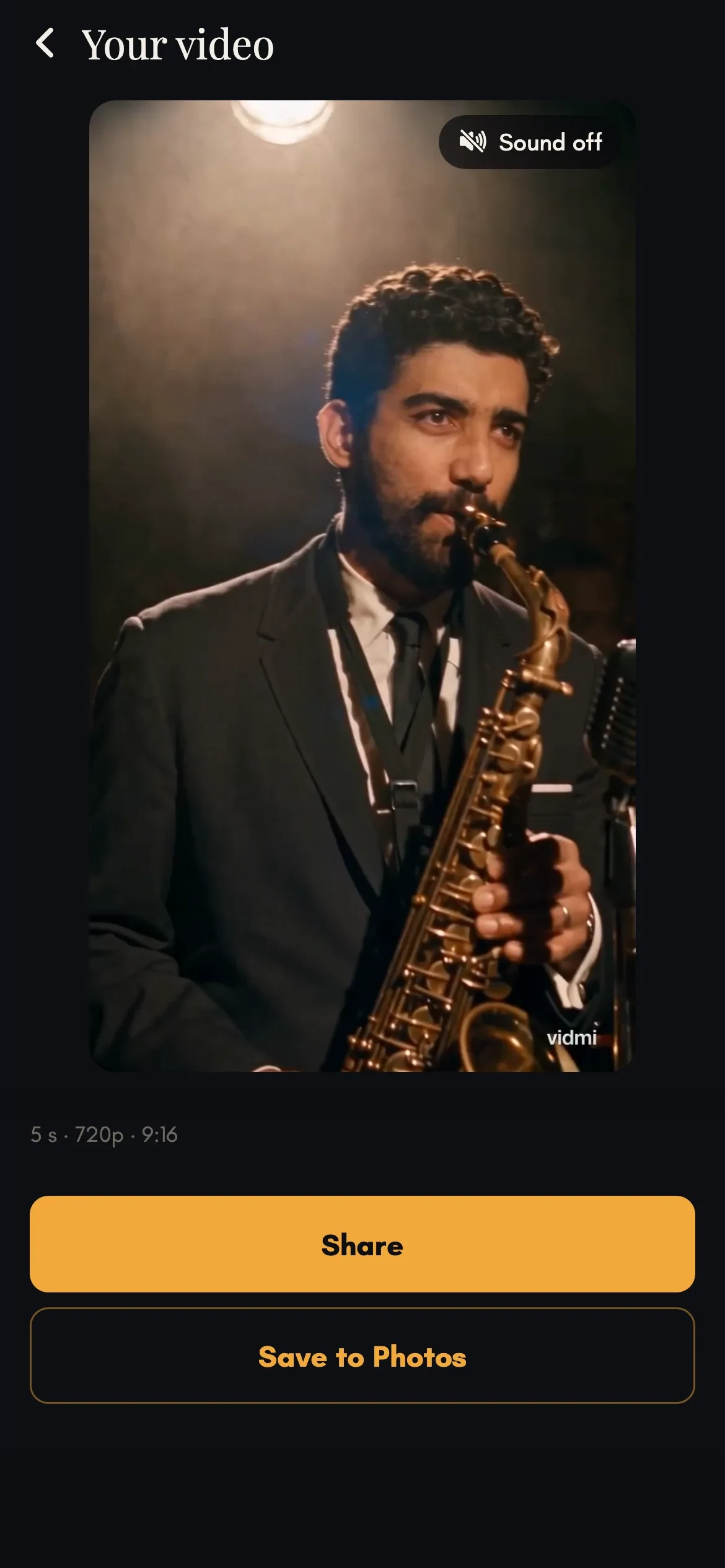
When a video is ready, the “Your video” screen has two buttons for getting it out. “Save to Photos” puts the video in your camera roll, so you have your own copy. “Share” opens the iPhone share sheet, so the video can go to the apps you already use. What you send is the video file itself. Read more on the Share button and Save to Photos.
If you only do one thing, tap “Save to Photos”. Every route below works from that copy.
Post it
Pick the shape before you make the film: 9:16 for Stories, Reels and TikTok, 16:9 for YouTube and a TV, 1:1 for a feed. Then post the saved video from Photos. There is a guide for each place.
- Post it on TikTok
- Post it as an Instagram Reel or Story
- Upload it as a YouTube Short
- Post it on Facebook
- Send it as a snap on Snapchat
- Post it on X
Send it to one person or the family
A text or a family chat puts the film in front of the people it was made for. Start with sending a video through text or sending it on WhatsApp. If a chat app makes the video look soft, you can send it without losing quality.
Play it for the room
A film made for a birthday or a reunion can go on the biggest screen in the house. AirPlay it from your iPhone to the TV if the TV supports AirPlay, or loop it on your iPhone so it plays again while people gather.
Finish it before you share
vidmi has no text, caption or music tools, so that part happens after you save. In iMovie you can add text to your video, put your own music under it or join several clips into one. Then label it as AI-made where you post.
14 guides.
All guides- Add text and captionsHow to add text to a video on iPhone: put a name, a year or one line on your vidmi clip with a title in iMovie, or with the text tool where you post.
- Add your own musicHow to add music to a video on iPhone: make your vidmi clip Silent or Sounds only, then put a song under it in iMovie or in the app where you post.
- Aspect ratio by platformSocial media video sizes in one table: 9:16 for TikTok, Reels, Shorts and Snapchat, 16:9 for YouTube and TV, 1:1 for feeds. Pick the shape first.
- Label an AI videoHow to label AI generated video when you post: where each platform puts its AI label, what to write in the caption, and what the vidmi mark already says.
- Play it on the TVHow to AirPlay from iPhone to TV: save your vidmi video to Photos, send it to the big screen with AirPlay, or mirror your screen, then set up the reveal.
- Post an Instagram ReelHow to post a reel on Instagram from your iPhone: the 9:16 size that fills the screen, a cover that shows the face, sound, caption and the AI label.
- Post on FacebookHow to post a video on Facebook from your iPhone: put a vidmi clip on your feed, your Story or a family group, in the shape that fits each one.
- Post on TikTokHow to post a video on TikTok from your iPhone: save your vidmi clip to Photos, upload it at 9:16, choose the sound and turn on the AI label.
- Post on XHow to post a video on X, formerly Twitter, from your iPhone: pick the shape, upload your vidmi clip from Photos, add one line and say it is AI-made.
- Send in iMessageHow to send a video through text on iPhone: share a vidmi clip in Messages to one person or a group, what changes for Android, and how to keep a copy.
- Send on SnapchatHow to send a video as a snap from your iPhone camera roll: save your vidmi clip to Photos, open it in Snapchat, then send it to a friend or your Story.
- Send on WhatsAppHow to send a video on WhatsApp from your iPhone: share a vidmi clip to a chat or a family group, post it to Status, and keep it as sharp as you can.
- Upload a YouTube ShortHow to upload a YouTube Short from your iPhone: a vertical vidmi video is ready as it is. Give it a title, mark it as AI-made, and know when 16:9 fits.
- Write a captionHow to write a good caption for a video post: three formulas, lines to borrow for a tribute, a joke or a creator post, and a question that invites replies.
One photo. Any scene. Your film.
Coming soon to iPhone: add one photo and pick a scene. Free to try, no account needed.
For iPhone.