Snapchat
How to Send a Video as a Snap From Your Camera Roll
To send a video as a snap from your camera roll, save your vidmi video to Photos, open Snapchat, swipe up to Memories and pick it from the Camera Roll tab. Then send it to a friend or your Story.
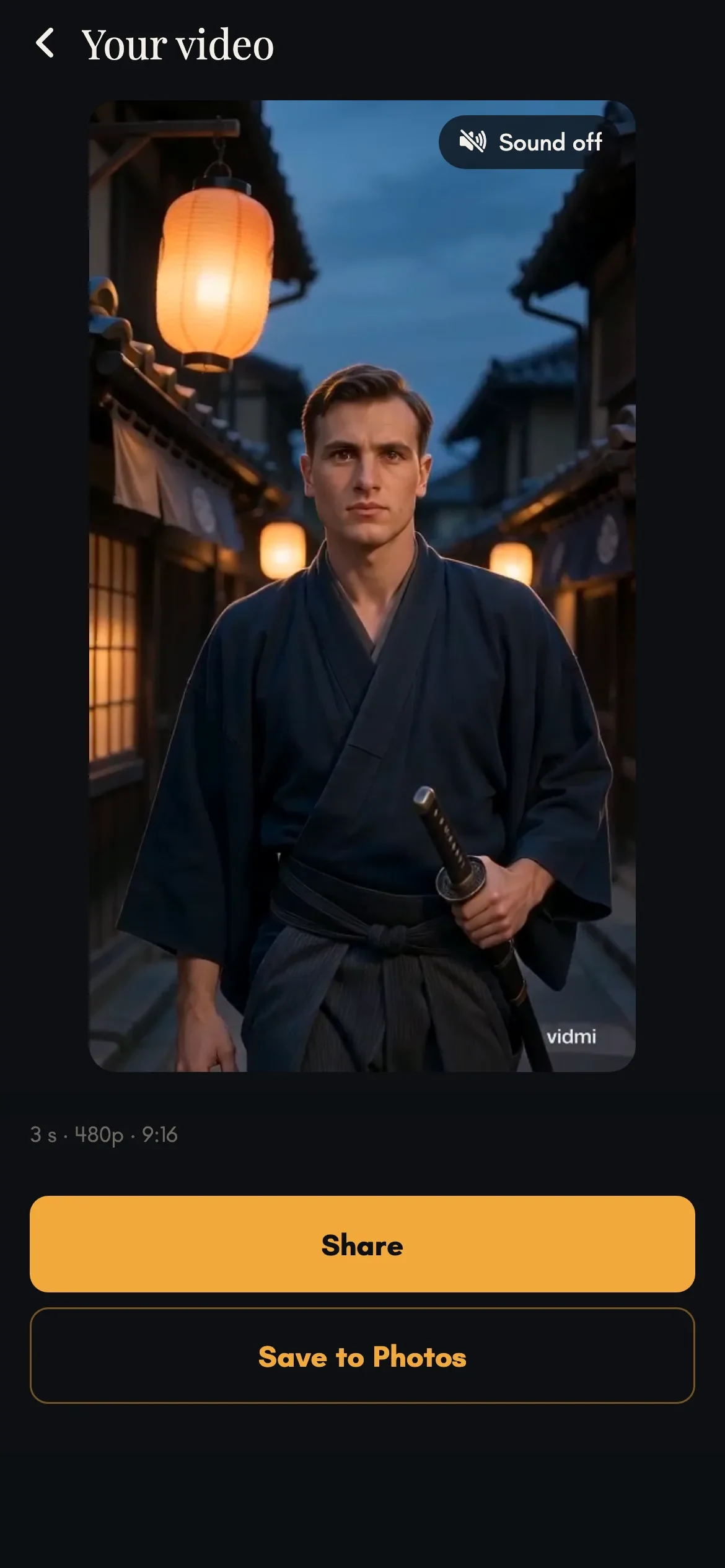
Snapchat is built around the camera, so a vidmi video does not start there. It starts in vidmi, and it reaches Snapchat from your camera roll or from the share sheet. Either way you finish and send it in Snapchat: vidmi does not send the snap for you.
Start with the right video
Snapchat is built for full-screen vertical video. Under “4. Format”, leave “Shape” on “9:16 Stories, Reels, TikTok” and your video should fill the phone with no bars.
Length matters too. Every vidmi video is 3 to 10 seconds. A 3 or 5 second video is quick to watch and easy to watch twice. Save 10 seconds for scenes with a slow reveal.
Two ways to get it into Snapchat
From the share sheet
On the “Your video” screen, tap “Share”. Your iPhone’s share sheet opens with the apps you have installed. If Snapchat is in the row, tap it. The video opens in Snapchat, ready to caption and send.
From Camera Roll
If Snapchat is not in the row, or you want to send the video later, tap “Save to Photos” instead. Then:
- Open Snapchat and swipe up from the camera to open Memories.
- Tap the “Camera Roll” tab and find your video. It is usually first.
- Tap the video, then tap the edit icon to add text, stickers, or a drawing.
- Tap the send arrow.
Snapchat moves its buttons around from time to time, so if a label differs, look for Memories and Camera Roll. Saving first has one more advantage. The video stays in your Photos, so you can send it again tomorrow or somewhere else without going back to vidmi. Save to Photos covers the details.
A Snap or your Story
On the send screen, you choose who sees it.
A direct Snap goes to the friends you pick. It suits a video starring one of them: the friend you put on a Viking longship, the roommate on a Wild West main street. Their reply comes straight back to you.
Your Story goes to whoever your Story settings let see it. Use it for videos starring you: walking on the Moon, playing sax in a smoky jazz bar, watching over the city from a rooftop at night. A Story is a way of saying “look what I made” without pointing it at anyone.
You can tick both on the same screen. Send it to the friend in the video first, then let everyone else see it on your Story.
Captions that land
A vidmi video does most of the talking, so keep the words short. Snapchat text sits over the video, and a long caption covers the face people came to see.
A few to try:
- “Found an old photo of myself”
- “Me on Monday vs me after coffee” over a Paris Café video
- “POV: you finally beat the group project”
- “Guess who”
- Just a single emoji under the face
Put text near the top so it stays clear of the face and the vidmi mark in the bottom-right corner. For more ideas, see writing a caption.
Keep it playful
Start with a clear face photo, good light and one person in the frame, so friends recognize the face at a glance. Then pick a scene that is clearly a stretch: a samurai at dusk, a deep-sea explorer, a nineteenth-century farmer at day’s end. The fun is in the gap between the photo and the place.
Only use photos you have the right to use, and if a friend stars in the video, let them see it before your Story does.
Before you send
- Check the shape is 9:16 if you want it full screen. More on that in choosing a shape for each platform.
- Turn sound on in vidmi to hear the video once before you send it.
- If you also post on Instagram, the steps are in how to post a Reel, and labeling AI video applies to any post.
Making videos for your friends at school? See how students use vidmi, or start from photo to video. Every route the button offers is in Sharing your video.
Questions
Will my video fill the whole screen on Snapchat?
It should, if you keep the default "9:16 Stories, Reels, TikTok" shape. Square and wide videos still send, but they will not fill the screen.
Does the vidmi mark show up on Snapchat?
Yes. Every vidmi video carries a small mark in the bottom-right corner, and it stays on the video wherever you share it.
Can I send the same video to several friends at once?
Yes. After you pick the video in Snapchat, choose as many friends as you like on the send screen, and add your Story in the same step if you want.