Scan old photos
How to Scan Old Photos With Your iPhone, Without Glare
You can scan old photos with an iPhone in about ten minutes by a window, no scanner needed. Aim for even light, no glare, a straight angle and a print that fills the screen.
What a good copy needs
You do not need a scanner to digitize an old photo. An iPhone held over the print gives a clean copy when four things are right: even light, no glare, a straight angle, and the print filling the screen so each face keeps its detail.
Get those right and the copy comes out as clear as the print itself allows. Everything below uses the Camera, Notes and Photos apps that come with your iPhone.
At the end, one short note on what a clean copy can become in vidmi. The method works whether or not you ever open it.
Before you shoot: frames, sleeves, dust and curl
Take it out of the frame. Glass reflects everything: the window, the lamp, you. If the print won’t come out, or is stuck to the glass, leave it there and tilt the frame slightly away from the light until the reflection slides off the face.
Leave it in the album sleeve only if you must. Plastic sleeves shine like glass. If the print is stuck, shoot at a slight angle and straighten it later.
Wipe off the dust. A soft, dry cloth, gently. Dust specks look like blemishes once the photo is enlarged.
Flatten curled prints gently. Lay the photo on a table under a clean sheet of paper and a heavy book for a while. If the print feels stiff or brittle, do not force it: hold two corners down lightly and crop your fingers out later.
How to take a picture of a picture without glare
Daylight from a window is the best light you own. Place the print on a table near the window, out of direct sun. Bright but soft is the goal.
Turn off the overhead lamps. Mixed light gives the face strange color casts.
Skip the flash. It bounces off the glossy surface and burns a white spot into the picture, often right where the eyes are.
Watch for your own shadow. Stand so the light comes from the side, not from behind you. If you still see a reflection, move the print a few inches or tilt it until the shine leaves the face.
Scan with the Camera app, step by step
- Open the Camera app and choose Photo mode.
- Hold the iPhone directly above the print, parallel to it. If the edges look like a trapezoid, you are at an angle. Turning on the grid in the Camera settings makes it easier to see.
- Move in until the print fills the screen. Don’t use digital zoom; move the phone instead.
- Tap the face on the screen to focus there. If the face looks too bright or too dark, drag the small sun icon beside the focus box up or down.
- Brace your elbows on the table and take three or four shots.
Pick the sharpest one. Zoom in on the eyes to check.
Or use the document scanner in Notes
Notes can find the edges of the print and square it up for you, which helps when you can’t hold the phone perfectly flat.
- Open Notes and start a new note.
- Tap the attachment button in the note’s toolbar (a paperclip or a camera, depending on your version of iOS) and choose Scan Documents.
- Hold the iPhone over the print. It outlines the print and takes the scan itself, or you can tap the shutter button.
- Drag the corners to fit the print, then keep the scan and save it.
The scanner is built for paper documents, so look at its filter choices and pick the one meant for photos, not the black and white one. Then save the scan to Photos: open it in the note, use the share control, and choose the option that saves an image. Photos is where you will crop it, and where vidmi’s “Gallery” button looks.
Compare the scan with a plain Camera shot of the same print, and keep the one where the face looks more natural.
Crop and straighten in Photos
Open the shot in Photos, tap Edit, then the crop tool.
- Straighten the image so the edges sit level.
- Trim the table, the border, and anything that isn’t the photo.
- On a group picture, crop tight to the one person you want. The group photo guide has more on this.
Leave a little room around the head and shoulders. You can crop again when you pick the photo in vidmi, so you don’t need to be exact here.
Check the copy
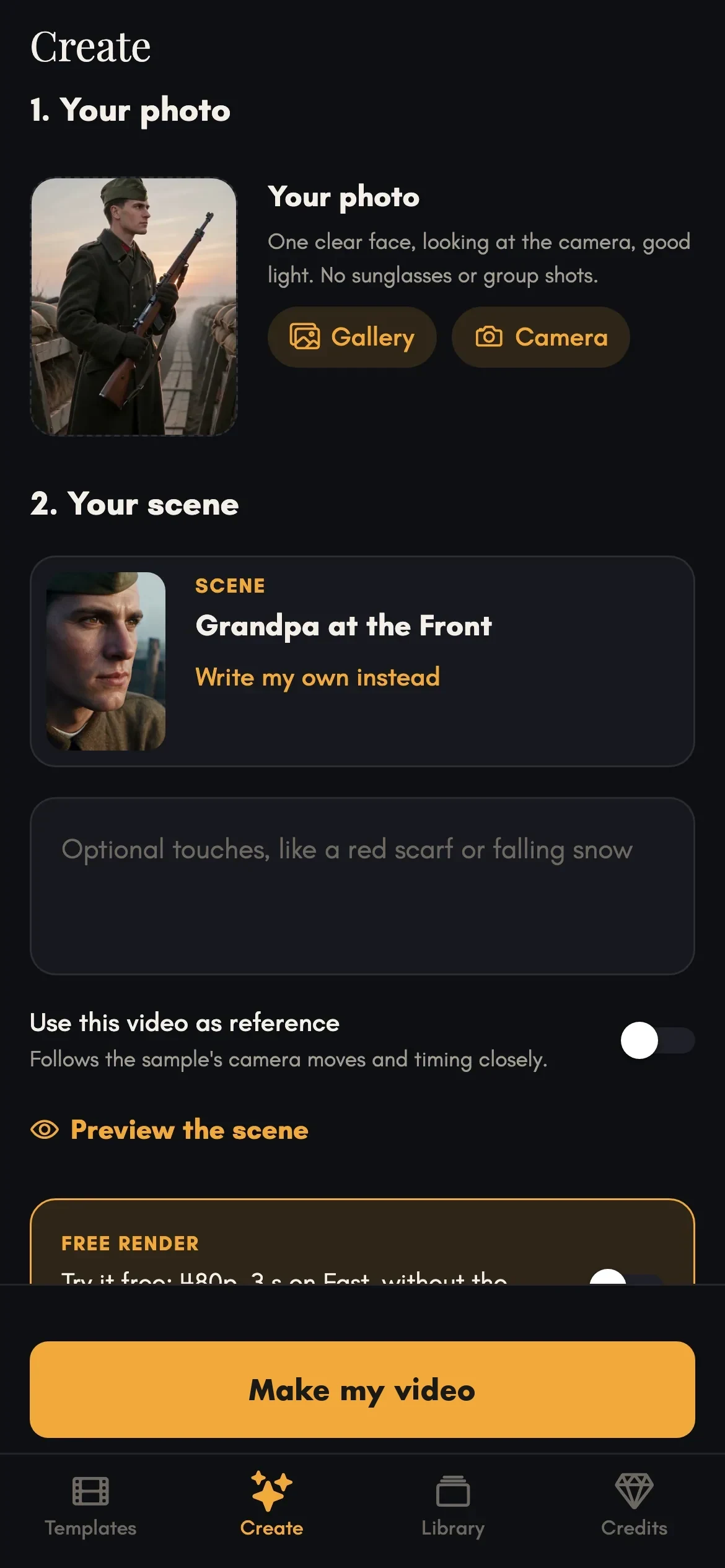
vidmi shows the same short rule for every photo: “One clear face, looking at the camera, good light. No sunglasses or group shots.”
Hold your copy up to it. Is the face sharp? Is it looking toward the lens? Is it free of glare? If yes, you are ready.
If the person appears in more than one print, scan them all and choose the clearest face. A studio portrait usually beats a candid snapshot, even if the snapshot is the one you love most. Choosing the best photo goes through what to look for.
What a clean scan can become
vidmi puts the face from your scan into a new short video scene. The print itself does not move, and vidmi does not restore or colorize it.
See animate old photos for what to expect, or turn an old family photo into a film to match the photo with an era and choose the sound. It is one of the ways photo to video works in vidmi.
Making a day of it with the whole family? Family archive day has ideas for sorting the boxes together, and what to do with old family photos covers keeping, scanning and sharing them.
Questions
Do I need a flatbed scanner?
No. A steady iPhone photo in soft daylight gives you a clean copy. If you already own a scanner, use it, then save the file to Photos.
Should I fix scratches or colors first?
You do not have to. vidmi does not restore or colorize a photo, so what matters is a clear face in the copy. If a crease or a stain crosses the eyes, look for another print of the same person where the face is clean.
Can I photograph the print from inside vidmi?
Yes. In "1. Your photo", tap "Camera" and shoot the print directly. Shooting in the Camera app first gives you more time to get it right, and keeps a copy in Photos.
How do I take a picture of a picture without glare?
Use soft window light, turn the flash off, and stand so the light comes from the side. If a reflection still shows, tilt the print or the frame slightly until it slides off the face.