Vidmi for cosplayers
AI Cosplay Video: See the Character Before You Build It
Use this AI cosplay generator for video. Add one face photo, describe your original character, and watch a short film of the look before you cut any fabric.
A test shot for an idea
Every build starts as a sketch and a guess. Will the green cloak look right against gray armor? Does this character belong in a forest or on a ship?
Vidmi gives you a moving answer. You add one face photo, type a sentence about the character, and get a short film, 3 to 10 seconds long, starring that face in the world you described.
The limit first: it’s a new scene starring your face, not a copy of a costume you’ve built. There are no words on screen, it’s one face per video, and it’s an iPhone app, free to try.
It won’t replace your pattern or your reference sheet. It shows you a mood: the light and the setting around the look. Think of it as a cosplay video maker for ideas.
Preview an original character
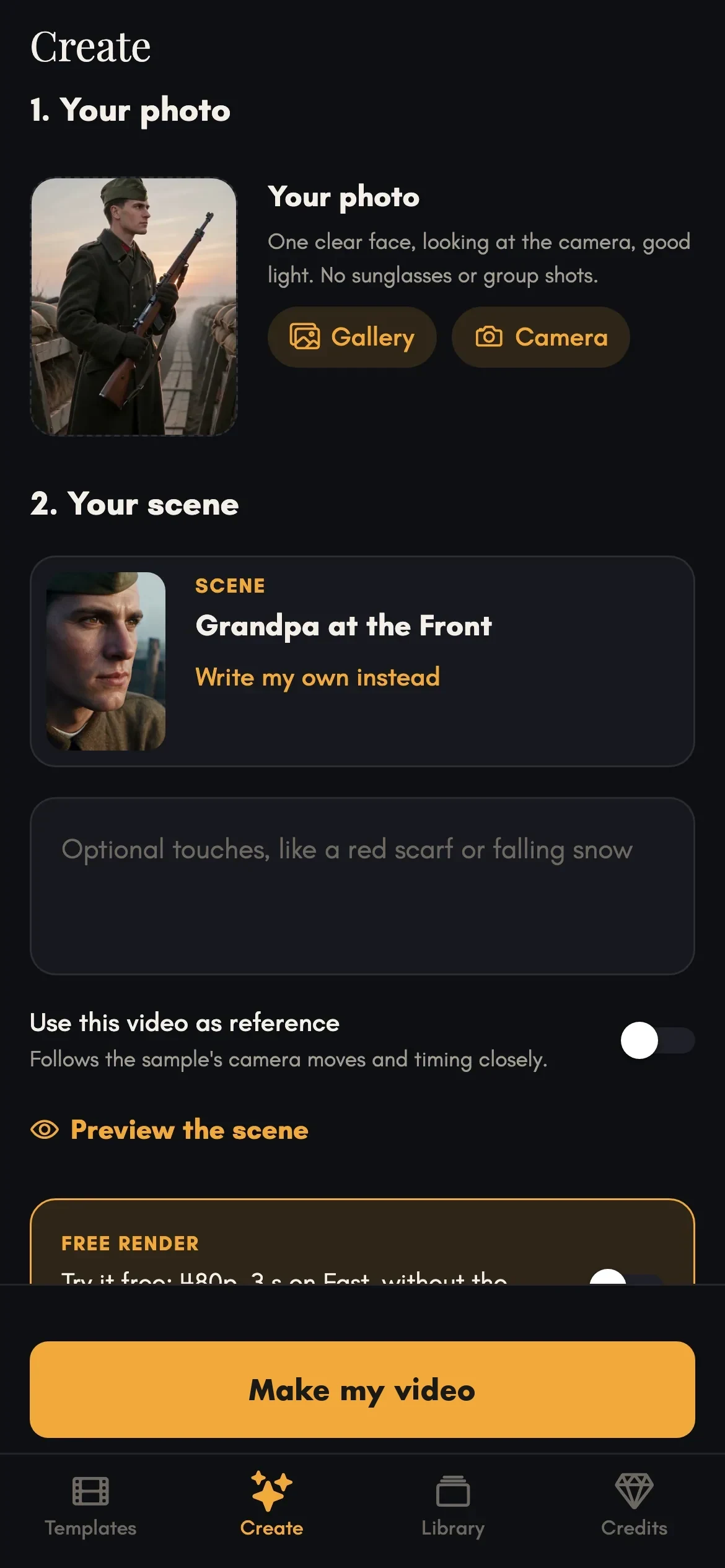
Open the Create tab and add a face photo. The app’s own tip is the one to follow: “One clear face, looking at the camera, good light. No sunglasses or group shots.”
Then describe the character under “Describe your scene in your own words”. You have up to 500 characters, so be specific about what you plan to build. The guide to writing a scene shows how.
Try this:
me as a wandering knight in dented silver armor and a moss-green cloak, standing at a ruined stone gate in morning fog
Before you make anything, tap “Preview the scene”. It tells you, in words, what the film will show. If the cloak came out red in the preview, fix your sentence first.
Change one thing at a time. Swap the green cloak for deep blue. Move the gate to a snowy pass. Three short films side by side can answer what a color swatch can’t. The film may not follow every detail, so read each result as a mood, not a spec.
Give a finished cosplay its world
Say the build is finished and the only photos are from a crowded convention hallway.
Take a clean, well-lit face photo, in your wig and makeup if they are part of the look, and describe the rest: the costume, the place, the weather. Your film puts that character somewhere else.
A ready-made scene can do the work for you. Viking Longship puts you at the prow of a longship, deep in a misty fjord. Samurai Street at Dusk lights lanterns along an old wooden street. Rooftop Hero gives you the city at night below.
On any of them, use the “Customise” box to bring in your own details. Something like a fur-trimmed blue cloak and a braided silver circlet fits, and you have up to 240 characters.
Keep it your own character
Cosplay is full of characters that belong to someone else. For vidmi, describe your own.
That’s easier than it sounds. You don’t need a name to get a look. Write what a stranger would see: a storm mage in layered gray robes with a copper staff. A desert courier with a patched coat and brass goggles pushed up on her forehead.
Skip character names, titles, and logos. Use your own face, or a photo you have the right to use. If the app can’t make an idea, it tells you before anything is charged, and you can try a different one.
The full rules live on the acceptable use page.
Settings that suit cosplay
- Fast for testing. It’s the quickest and cheapest model, good for trying a color or a setting. It is also the model free videos use.
- Quality or Max for the keeper. Quality has richer detail and steadier motion. Max is the most cinematic.
- “9:16” for Stories and Reels, “1:1” for your feed, “16:9” if the film opens a build video.
- “Sounds only” when you want wind, rain, or a crowd with no voices. “Silent” works if you plan to post it without sound.
When the film is ready, tap “Save to Photos” or “Share”. Every video carries a small vidmi mark in the bottom-right corner.
Where to start
For cosplay video ideas with dragons, ruins, and long roads, see fantasy films. For ready-to-type sentences, borrow from the wizard ideas or the medieval knight ideas, then change the details until the character is yours. The photo to video page explains the basics.
Questions
Can I make a film of an existing character from a show or game?
Stick to characters you invented. Describe the look in your own words (the armor, the colors, the world) instead of naming someone else's character. The acceptable use page has the details.
Will the film show my costume exactly as I built it?
Don't count on an exact copy. The film stars the face in your photo, and the costume and the world come from what you describe. Treat it as a mood piece, and keep your real photos for the stitch-level detail.
Can I use a photo where I'm wearing a mask or helmet?
Use one where your face shows. The app asks for one clear face, looking at the camera, in good light, with no sunglasses. Describe the helmet in your scene instead.
Can my whole cosplay group be in one film?
No. Each film starts from one photo of one face. Make one film per member, in the same scene, and post them together.