Christmas elf
Turn Yourself Into a Christmas Elf: AI Elf Video From One Photo
vidmi is an AI elf video generator for your iPhone. One photo and one sentence make a 3 to 10 second elf scene with your face, free to try. One face per video, not a group dance.
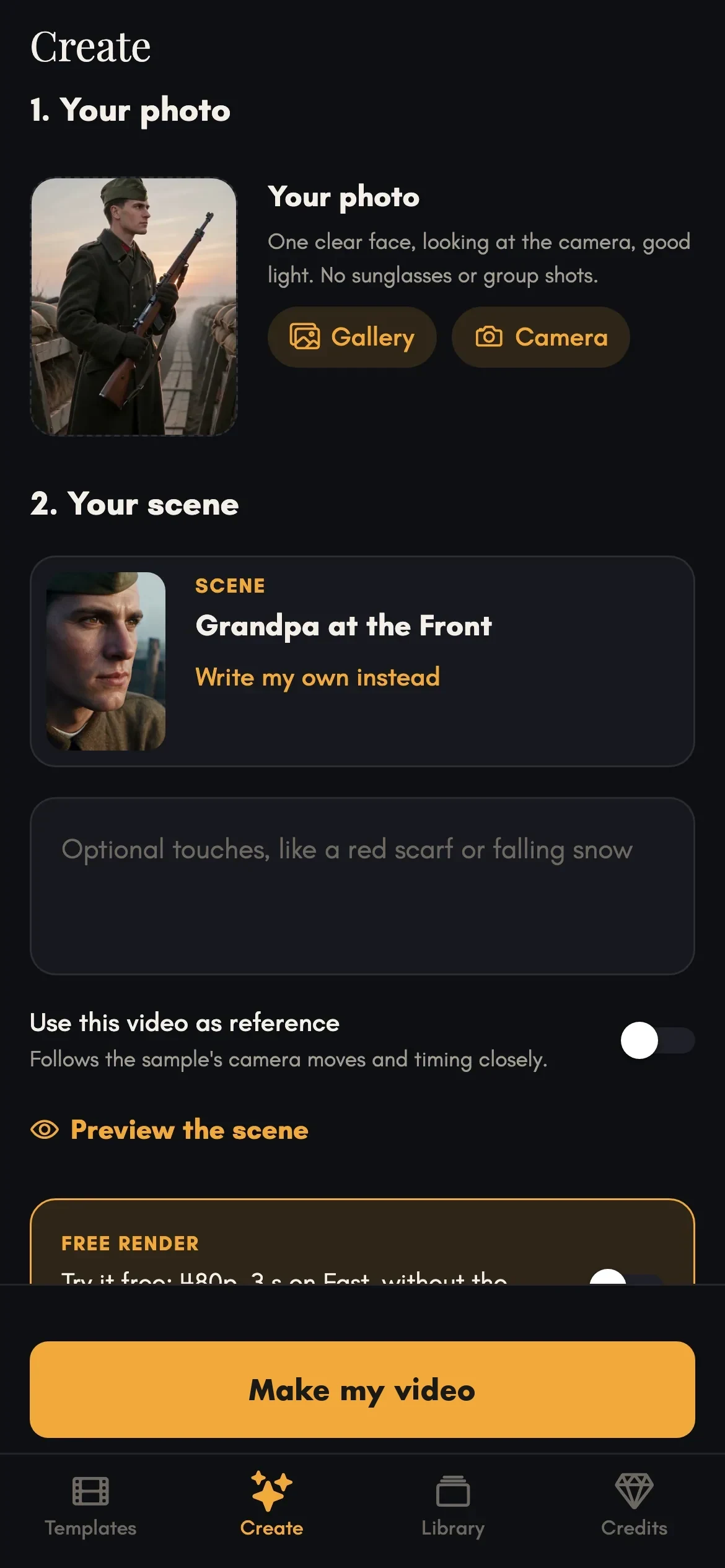
Your face on a Christmas elf, in one sentence
Open vidmi, add one clear photo of a face, and type a sentence under “Describe your scene in your own words”. vidmi makes a short elf scene starring that face.
It makes one elf per video. It is not a row of five faces dancing to a song you pick, there is no music track to choose, and no name or text appears on the screen.
Start with this:
- “me as a workshop elf in a pointed green hat, sanding a wooden rocking horse at a cluttered bench, lantern light and sawdust in the air”
Four elf scenes to copy
Each one keeps to a single elf with a single job. Open the Create tab, tap “Gallery” or “Camera”, then paste one into “Describe your scene in your own words”.
- “me as an elf in a striped scarf, brushing snow off the runner of a red sleigh in a lantern-lit barn, my breath showing in the cold”
- “my brother as an elf crouched on a snowy rooftop at night, one hand on the chimney, glancing back at the camera with a guilty grin”
- “my grandma as an elf at a long wrapping table, tying a gold ribbon around a box, paper rolls stacked behind her and snow at the window”
- “my dad as an elf carrying a tall stack of gift boxes down a candlelit corridor, one box wobbling at the top”
Before you make one, tap “Preview the scene” to read, in words, what the video will show. For more starting points, see the Christmas ideas list.
One elf per person: make the family a set
The family elf video is really a set of them. Make one for Dad, one for Grandma, one for the cousin who always runs late, and send them in a row.
To help the set look like a set, hold your choices still: the same “Length”, the same “Shape” and the same sentence, changing only the person and the job. Details can still differ from one elf to the next. The series guide has more on holding a run of videos together.
This is face swap video in vidmi’s sense: you put the face from one photo into a scene vidmi makes. The face swap video page explains what that does and does not cover.
Pick the photo that makes it funny
The joke is that everyone in the chat knows the face, so pick a photo where it is easy to recognize. The app’s tip is the one to follow: “One clear face, looking at the camera, good light. No sunglasses or group shots.”
If the best picture is a group shot, crop it to the one person you want. Use a photo you have the right to use.
Sound, shape and length for the group chat
Under “4. Format”, three settings matter for an elf.
- Shape: keep “9:16 Stories, Reels, TikTok” for the phone screen. Choose “1:1 Feed” if you will post it to a feed.
- Length: 3, 5, 7 or 10 seconds. Five is plenty for one joke.
- Sound: “Sounds only” gives you the workshop around the elf, with no voices. “Voices + sounds” lets people in the scene talk or sing, but you cannot choose what they say.
When it is done, tap “Share” and pick the chat, or tap “Save to Photos” to keep it. Every video carries a small vidmi mark in the corner. The guide to sending a video on WhatsApp covers the family group.
Send it before the tree goes up
The elf joke works best early, when the family is still deciding who does the lights. A short Fast video is “Usually 1 to 3 minutes”. You can leave the screen, and you get “Your video is ready” when it is done.
Send the first elf with a line in the message, like “Day one at the workshop.” Then drop the next one in a day later. For the full season, see Christmas videos for the family chat.
Questions
Can I put the whole family on elves in one video?
No. Each video starts from one photo of one face. Make one elf per person and send the videos together as a set.
Can I pick the song, or make the elf dance to one?
No. There is no music track to choose. Under "Sound" you pick "Voices + sounds", "Sounds only" or "Silent". If you want a song, add it afterward, in an editor or in the app where you post if it offers music.
Can the video show my name or a caption?
No. vidmi does not put names or text on a video. Type the words in your message when you send it.
Can I put my face on an elf in a video I already have?
Not yet. Your face goes into vidmi's scenes, not yet into a video you upload. You describe a new elf scene in a sentence instead.
How long is the video?
You choose 3, 5, 7 or 10 seconds. The free try is 3 seconds at 480p.
Do I need an account?
No. There is no account and no sign-up. New users can try it free, and after that you buy credits in the app.