For event planners
AI Video for Event Planners: The Guest of Honor on Screen
Use AI video for event planners to put the guest of honor on screen. One photo makes a short film, sized 16:9 for the big screen, with one face per film.
One moment the room remembers
The lights drop. The retiring CFO appears on the screen at the prow of a longship, deep in a misty fjord. Five seconds later the lights come up and she steps to the microphone.
That is the job vidmi can do at an event. It does not replace your slideshow or your videographer. It adds the one beat nobody expected.
The film is a new scene starring the face in one photo, with no words on screen and no lines you can script, and each one carries a small vidmi mark. Try it free on your iPhone before you promise a client anything.
What you need from the client
- One photo per person. The app’s own guidance is the standard to pass along: “One clear face, looking at the camera, good light. No sunglasses or group shots.”
- Photos you may use. More on that below.
- A scene idea. A hobby, a running joke, the trip they keep talking about.
Ask for photos with your first planning email, not the week of the event. A cropped headshot from the company site may work. A blurry group shot from the holiday party does not.
A workflow for several films
Say you are planning an awards dinner with six honorees. Here is a run for the set.
- Pick the scenes. Browse the templates for ready-made ones such as Walking on the Moon or Paris Café, 1920s. Or tap “Write my own instead” and describe the scene in a sentence.
- Test on Fast. Fast is “Ready in about a minute and a half,” so it suits trying ideas. Tap “Preview the scene” first to read, in words, what the film will show before you spend anything.
- Queue three at a time. You can have up to 3 videos in progress at once. Start three, leave the screen, and let the “Your video is ready” alert call you back.
- Make the keepers. Once a scene works, tap “Make another” to run the same scene again on Quality or Max at 1080p for the big screen.
- Save each one. “Save to Photos” puts the file on your iPhone, ready to hand to your AV lead.
Every paid film shows its cost in credits before you tap, so you can check before you commit. If a film fails, its credits come back to your balance automatically.
An example you can try
Take a photo of yourself, open the Create tab, and type something like this:
“me in a tuxedo stepping onto a grand theater stage, spotlight on, a full house rising to applaud”
Set Shape to “16:9 YouTube, TV” and Length to 10 s. That is your proof of concept for the next client meeting.
Set it up for the screen
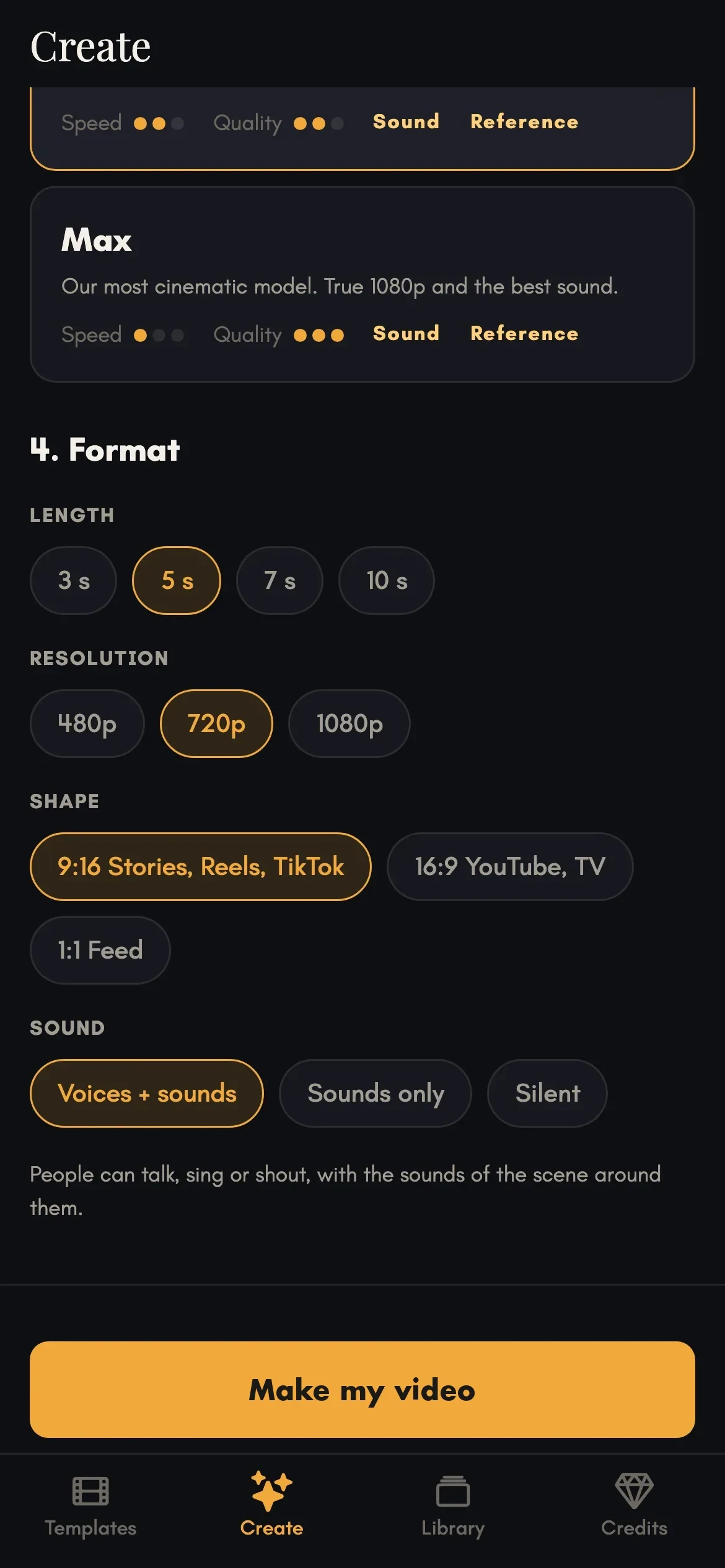
Films are vertical by default, which suits phones and not ballrooms. Change three things in “4. Format” before you make the final version.
- Shape: “16:9 YouTube, TV” for projectors, LED walls and lobby displays. Keep “9:16” for a vertical totem or for the version guests will post. See aspect ratios for all three shapes.
- Resolution: 1080p is the top setting. Use it for anything bigger than a laptop.
- Sound: “Silent” or “Sounds only” if a band, a DJ or an emcee owns the audio. “Voices + sounds” if the film gets its own quiet moment.
Each film is a short MP4. After “Save to Photos”, move the file to the show computer your AV team already runs, or play it straight from your phone to a TV by following play on TV with AirPlay.
Photos you have the right to use
Use only photos you have the right to use. A simple line on your intake form keeps it clear: who is pictured, who supplied the photo, and where the film will play.
Keep it to guests and honorees. Do not make films of public figures or people who are not part of the event. For picking the right face photo, the best photo guide has the checklist.
Where it fits in the program
- Galas and award nights: a film per honoree, played as each one walks up.
- Roasts: the roastee as a movie hero for ten seconds, then the jokes. Pick a scene that teases a known habit.
- Milestone birthdays and anniversaries: one film before the toast makes a simple milestone birthday video.
- Retirement parties: the retiree somewhere far from a desk. See the retirement page for scene ideas.
- Weddings: a film each for the couple during the reception. The wedding page has more.
- Corporate kickoffs: the keynote speaker’s entrance, in a scene that matches the theme.
- Teasers: an event teaser video for the invite or the lobby screen, starring the host, shaped 9:16 for social or 16:9 for the room.
New to vidmi? Photo to video explains what it makes. Planning several films with one visual thread? Make a series shows how to keep them feeling like a set.
Questions
Can one film show the whole team or the whole family?
No. Each film starts from one photo with one face. For a group, make one film per person and play them back to back.
How long is each film?
You choose 3, 5, 7 or 10 seconds. Think of them as moments inside your program, not as the full tribute reel.
Can I remove the vidmi mark for a client event?
No. Every film carries a small vidmi mark in the bottom-right corner, and there is no option to remove it.
Can I choose what the person says in the film?
No. With "Voices + sounds" on, people in the scene can talk, sing or shout, but you cannot script their words. For a room with its own music, pick "Silent".